
How Does Corsair Laptop RAM Boost Performance?
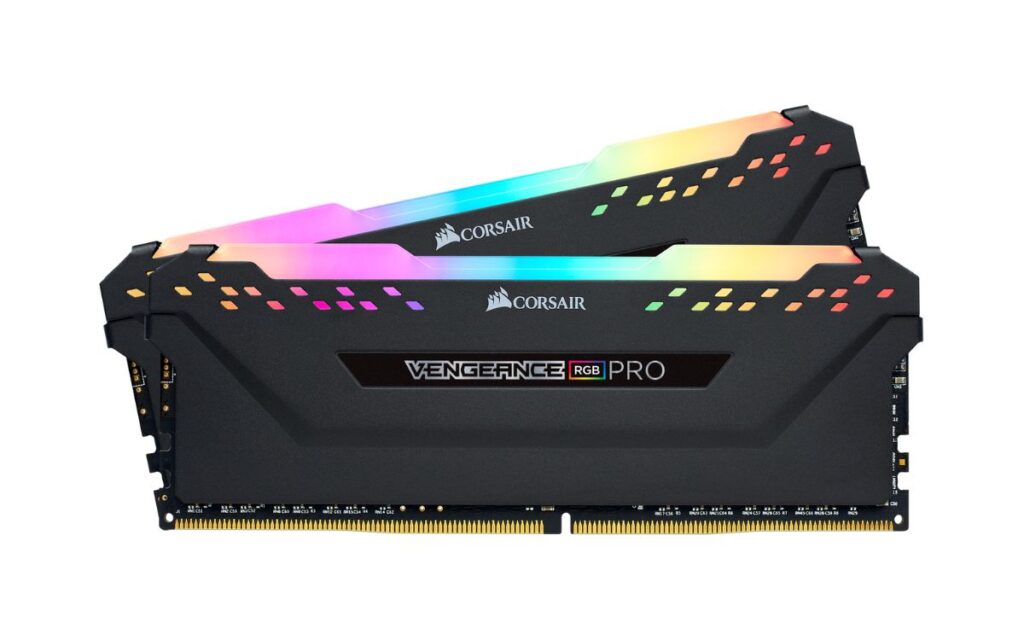
Corsair Laptop RAM
If your laptop feels slow during multitasking, content creation, or gaming, a memory upgrade is often the simplest fix. Corsair Laptop RAM is a popular choice because it focuses on stable performance, broad laptop compatibility, and consistent quality for everyday users and power users alike. Moreover, upgrading RAM can extend a laptop’s usable life without replacing other electronics.
In this guide, you will learn what Corsair Laptop RAM is, how it works inside laptops, how to choose the right spec, and how to install it safely while keeping performance reliable.
What Corsair Laptop RAM Is and Why It Matters
Laptop RAM is short term memory that helps your system handle active tasks. When RAM is limited, the laptop starts relying more on storage, which increases loading time and can cause stutters. Therefore, upgrading RAM helps your laptop stay responsive when you run multiple apps, browser tabs, or creative tools.
Corsair Laptop RAM is typically offered in laptop friendly formats and capacities designed for common upgrade paths. It helps laptops handle heavier workflows while maintaining stability during long sessions. In addition, better memory headroom can reduce app crashes caused by memory pressure.
How RAM Impacts Real Laptop Performance
RAM affects how smoothly your laptop behaves under load. It does not replace a fast CPU, but it supports it by feeding data efficiently.
Common improvements after a RAM upgrade include:
- Faster switching between apps and browser tabs
- Smoother performance in editing software and developer tools
- Better results in games that stream textures and assets
- More stable virtual machines and productivity workloads
Choosing the Right Corsair Laptop RAM for Your Laptop
Before buying any laptop RAM, match it to your system. Laptop memory is not universal, so choosing the correct type matters as much as choosing the capacity.
Check Laptop Compatibility First
Start with your laptop’s supported memory type and maximum capacity. You can confirm this via the laptop manual, manufacturer support page, or system information tools. Next, verify whether your laptop has removable RAM slots or soldered memory.
Key factors to confirm:
- Memory generation supported by the laptop
- Maximum supported RAM capacity
- Number of slots and whether one slot is free
- Current installed module size and speed
Because laptops vary, compatibility checks prevent wasted time and returns.
Capacity and Speed That Fit Real Workloads
Capacity is usually the first upgrade decision. More RAM is especially useful for modern laptops because browsers, collaboration tools, and background services keep expanding.
Practical guidance:
- 8 GB: light use, basic browsing and office work
- 16 GB: ideal for most users, multitasking, casual gaming, and study
- 32 GB: creators, developers, heavy multitasking, advanced laptops
- 64 GB: workstation class laptops that explicitly support it
Speed and latency also matter, but stability and compatibility come first. If your laptop supports a maximum speed, running at that supported speed is typically the most reliable approach.
Performance Benefits for Gaming, Work, and Everyday Use
Corsair Laptop RAM can improve the feel of a laptop more than many users expect. That is because memory shortages create bottlenecks that show up as lag, freezes, and delayed responses.
Gaming and Graphics Related Work
Games often benefit from more memory when running alongside chat apps, streaming tools, or background services. Although GPU performance is crucial, extra RAM helps keep game assets available.
You may notice:
- Fewer stutters when new areas load
- Smoother frame pacing in busy scenes
- Better multitasking while gaming on laptops
Even laptops with integrated graphics can see improvements because integrated graphics often share system memory.
Productivity, Multitasking, and Content Creation
For creators, RAM helps with larger files and faster preview performance. For office users, it improves responsiveness when spreadsheets, browsers, and communication tools run together.
Workloads that benefit strongly:
- Photo editing and layered projects
- Video editing timelines and caching
- Coding environments and containers
- Multiple browser tabs and web apps
Installation Tips and Safety for a Clean Upgrade
Installing laptop RAM is usually straightforward, but doing it carefully protects your laptop and keeps the upgrade stable.
Tools and Preparation
Before you open the laptop, prepare a clean workspace. Also, ensure the laptop is fully powered down.
Recommended tools and safety items:
- Small screwdriver set for laptop screws
- Anti static precautions for electronics handling
- Good lighting and a small tray for screws
- Basic safety steps like unplugging chargers and peripherals
Keep cables and connectors clear, and avoid pulling on delicate parts. Laptop internals include sensitive components such as controllers, sensors, and microcontrollers, so gentle handling is essential.
Basic Installation Steps
Follow these general steps, then adapt to your laptop model:
- Shut down the laptop completely and unplug power
- Remove the back cover carefully
- Locate memory slots and release side clips
- Insert the RAM module at the correct angle
- Press down until the clips lock firmly
- Reassemble, then boot and verify the upgrade
After boot, confirm the new memory is detected. If the laptop fails to start, reseat the module and confirm it matches the supported type.
Keeping Memory Stable and Cool in Laptops
Laptop performance depends on heat control. While RAM itself is not usually the hottest part, heat affects the entire system. Therefore, consider laptop airflow, dust control, and thermal management to keep performance consistent.
Helpful habits:
- Keep vents clean and avoid blocking airflow
- Use a solid surface for better cooling
- Consider maintenance if the laptop runs unusually hot
In some laptops, thermal pads and careful internal airflow help manage heat around components. Good thermal practices also support nearby electronics like microprocessors, controllers, and power components.
Related items that support laptop reliability include:
- Thermal pads for improved contact where supported
- Tools for safe cleaning and maintenance
- Cables and connectors that remain secure and undamaged
Matching RAM With the Rest of Your Laptop Setup
RAM works best when the rest of the system is balanced. For example, upgrading to more RAM helps, but pairing it with healthy storage and stable power improves the overall result.
Consider these laptop upgrade pairings:
- More RAM plus an SSD for faster app launches
- Proper power and safety checks to avoid random shutdowns
- Quality peripherals with reliable connectors and cables
Also, ensure your laptop remains protected with basic safety practices. Stable operation is influenced by many small factors, from clean connections to proper handling of internal parts.
Final Thoughts
Corsair Laptop RAM is a practical upgrade for laptops that feel slow, laggy, or limited under modern workloads. When you choose the right type and capacity, you can improve multitasking, reduce stutters, and make everyday work feel smoother. Moreover, a careful installation and good thermal habits help keep the upgrade stable for the long term.