
Which Corsair Laptop RAM Is Right for Your Upgrade?

Introduction
Upgrading memory is one of the fastest ways to make a laptop feel newer. Corsair Laptop RAM is a solid choice when you want dependable performance, consistent quality, and straightforward compatibility for everyday laptops and mobile workstations.
This guide shows what to buy, which specs matter, and how to install it safely. You will also see how RAM works with your laptop’s microprocessors and memory controllers, plus why clean thermals help upgrades feel better.
What Corsair Laptop RAM changes in daily use
Laptop memory is usually SO-DIMM, a smaller format than desktop DIMMs. When you add more RAM, your system stops relying on slow storage swapping, so apps stay responsive.
That helps with heavy browsing, office suites, coding tools, and creative work. It also helps when you run multiple connected electronics devices through docks, chargers, and USB cables at the same time.
Capacity first, then speed
Capacity is the biggest win for most people. Jumping from 8 GB to 16 GB often improves multitasking more than a small speed increase. If you use virtual machines, large files, or demanding creative apps, 32 GB can be a smarter target.
After capacity, check the maximum speed your laptop supports. Many laptops cap memory frequency based on the CPU memory controller and BIOS limits.
DDR4 vs DDR5 for laptops
DDR4 and DDR5 are not interchangeable. They use different notches and platform support. DDR5 can deliver higher bandwidth on compatible systems, while DDR4 remains common across many laptops.
Choose the generation your laptop supports, then match SO-DIMM format and the standard voltage for that generation.
Compatibility checks that prevent wrong orders
Before buying Corsair Laptop RAM, confirm four items: generation, form factor, system limits, and speed support.
- Memory generation: DDR4 or DDR5 as listed for your model
- Form factor: SO-DIMM for most upgradeable laptops
- Maximum capacity: per slot and total system maximum
- Supported speeds: based on CPU and board controllers
Also check whether your laptop has two slots, one slot, or soldered RAM. Many thin laptops have memory fixed on the board, which limits upgrades.
Matched pairs for dual channel performance
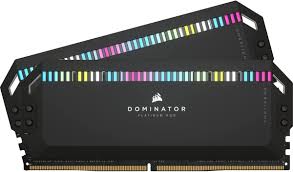
If your laptop supports dual channel, a matched pair can improve bandwidth and reduce hiccups, especially for integrated graphics. Mixing modules can work, but matching capacity and speed is safer.
Key specs explained without the jargon
Frequency and timings
You will see MT/s or MHz and a timing like CL. Higher frequency can help bandwidth, but only if your laptop supports it. Lower CL can help latency, yet real world gains vary.
For most laptops, the best choice is a supported speed from a reputable module, rather than chasing extreme ratings your system cannot use.
Rank and density
Some older laptops are picky about certain module layouts. If you own a legacy platform, stay with common sizes like 8 GB or 16 GB modules and avoid unusual configurations unless your model documentation confirms support.
Installation and safety for a clean upgrade
Laptop upgrades are simple, but handle parts carefully.
- Shut down fully and unplug power
- Discharge by holding the power button briefly
- Use anti static habits, and avoid touching contacts
- Work on a clean surface with the right tools
- Insert the SO-DIMM at an angle, then click it flat
Be mindful of nearby connectors, ribbon cables, or sensors inside the bottom cover. If you feel resistance, stop and recheck alignment.
Thermal basics that keep performance steady
RAM is not usually the hottest component, but laptops depend on tight airflow paths. Keep vents clear and remove dust so the CPU and GPU do not throttle under load.
Good thermals matter when you run demanding tools, video calls, or long compiles, because stable cooling lets microprocessors hold higher clocks more consistently.
After installation: confirm, test, and tune expectations
Check that the laptop recognises the new capacity. In Windows, look at Task Manager. In Linux, use system tools to confirm installed memory.
If the reported speed is lower than the module rating, your laptop is likely running at its supported limit. Many laptops do not enable overclocking profiles.
Quick troubleshooting checklist
If you see crashes or boot loops after the upgrade:
- Reseat the module firmly
- Test with one stick at a time if you have two
- Run a memory test to rule out faults
- Confirm you bought the correct DDR generation and capacity
A BIOS update from the laptop manufacturer can sometimes improve memory compatibility, but only update when you can follow the vendor steps safely.
Where the upgrade feels most dramatic
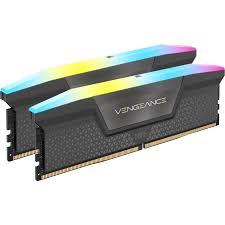
Corsair Laptop RAM stands out when your workload pushes memory limits.
- Multitasking with many browser tabs and communication apps
- Photo and video editing with large projects
- Development with containers, emulators, and compilers
- Electronics work such as programming microcontrollers and controllers, while keeping datasheets open
- Gaming on integrated graphics where bandwidth can help
If your workflow includes test leads, adapters, and various connectors, more RAM helps you keep logs, dashboards, and documentation open without slowdowns.
How to choose the right Corsair Laptop RAM kit
Use a simple buying process that stays product relevant.
- Identify your laptop model and CPU generation
- Confirm DDR4 or DDR5 SO-DIMM support
- Pick a capacity target that matches your workload
- Choose a supported speed, not just the highest label
- Prefer a matched pair for two slot systems
If you already have 16 GB and memory usage still spikes, moving to 32 GB often delivers the cleanest improvement. If you are on 8 GB, 16 GB is usually the best value upgrade for most laptops.
Final thoughts
Corsair Laptop RAM is a practical way to improve real world responsiveness when you buy to your laptop’s specifications. Focus on compatibility and capacity first, then choose a supported speed. With careful installation and healthy thermals, your laptop can feel smoother for work, creative projects, and daily use.